
How to Stop Smart TV Tracking: 4 Hidden Privacy Switches
Stop smart TV tracking in five minutes. Exact menus for Samsung, LG, Sony, Google TV, Fire TV and Roku, plus the truth about new AI debloat tools.

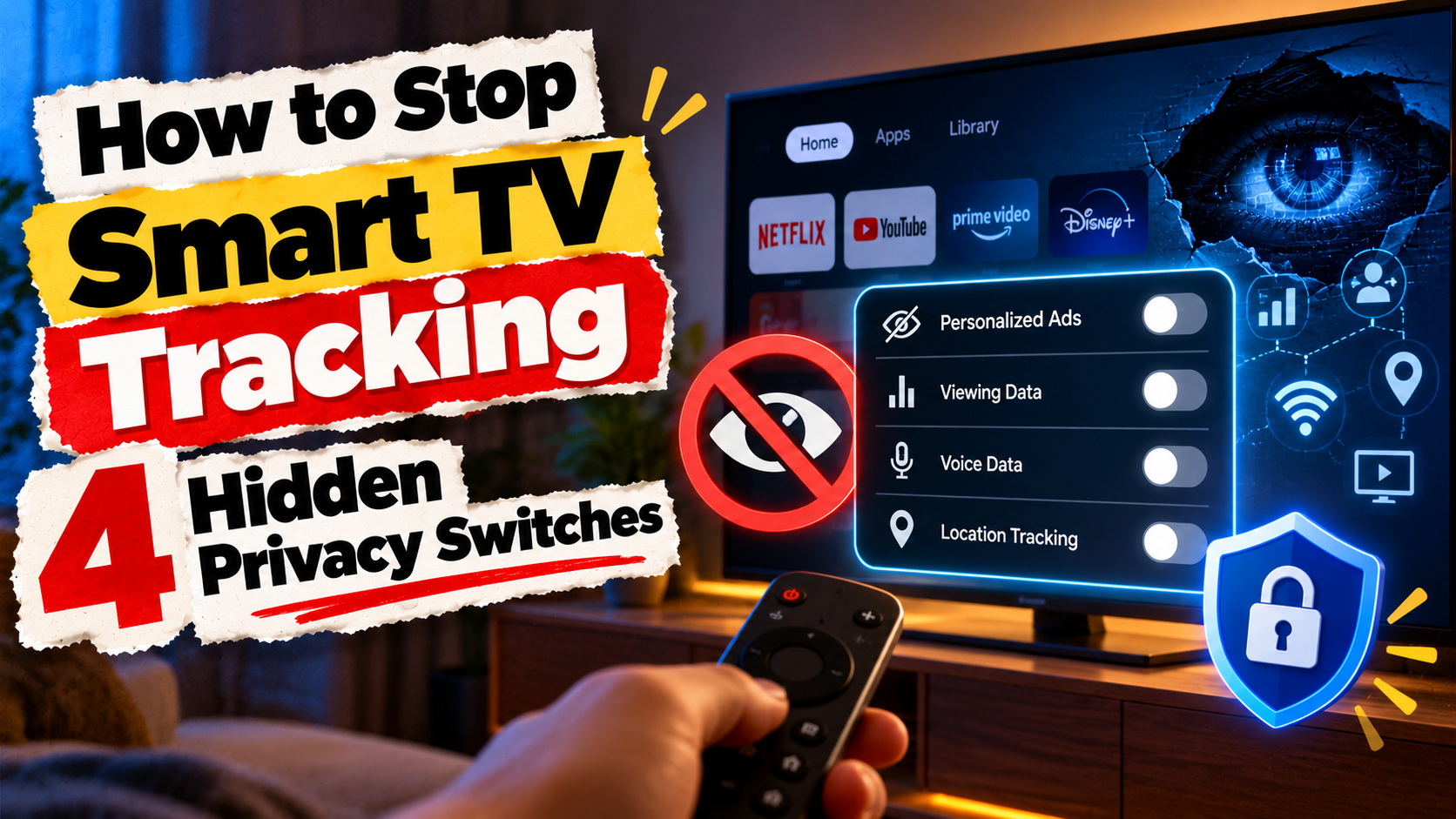
Your smart TV may be logging what you watch, even when the picture comes from a set-top box or a laptop. The good news: you can stop smart TV tracking in about five minutes, without any special tools. It takes four switches, and most brands hide them deep in the settings.
This matters today because smart TV privacy is suddenly big news. This week, reports showed hobbyists using AI coding tools to strip ads and tracking from their TVs. So more people are asking a simple question: what is my TV sending out, and how do I turn it off?
This guide answers that. You will get the exact menus for Samsung, LG, Sony, Google TV, Fire TV and Roku, plus an honest take on the new AI tricks.
The Short Version
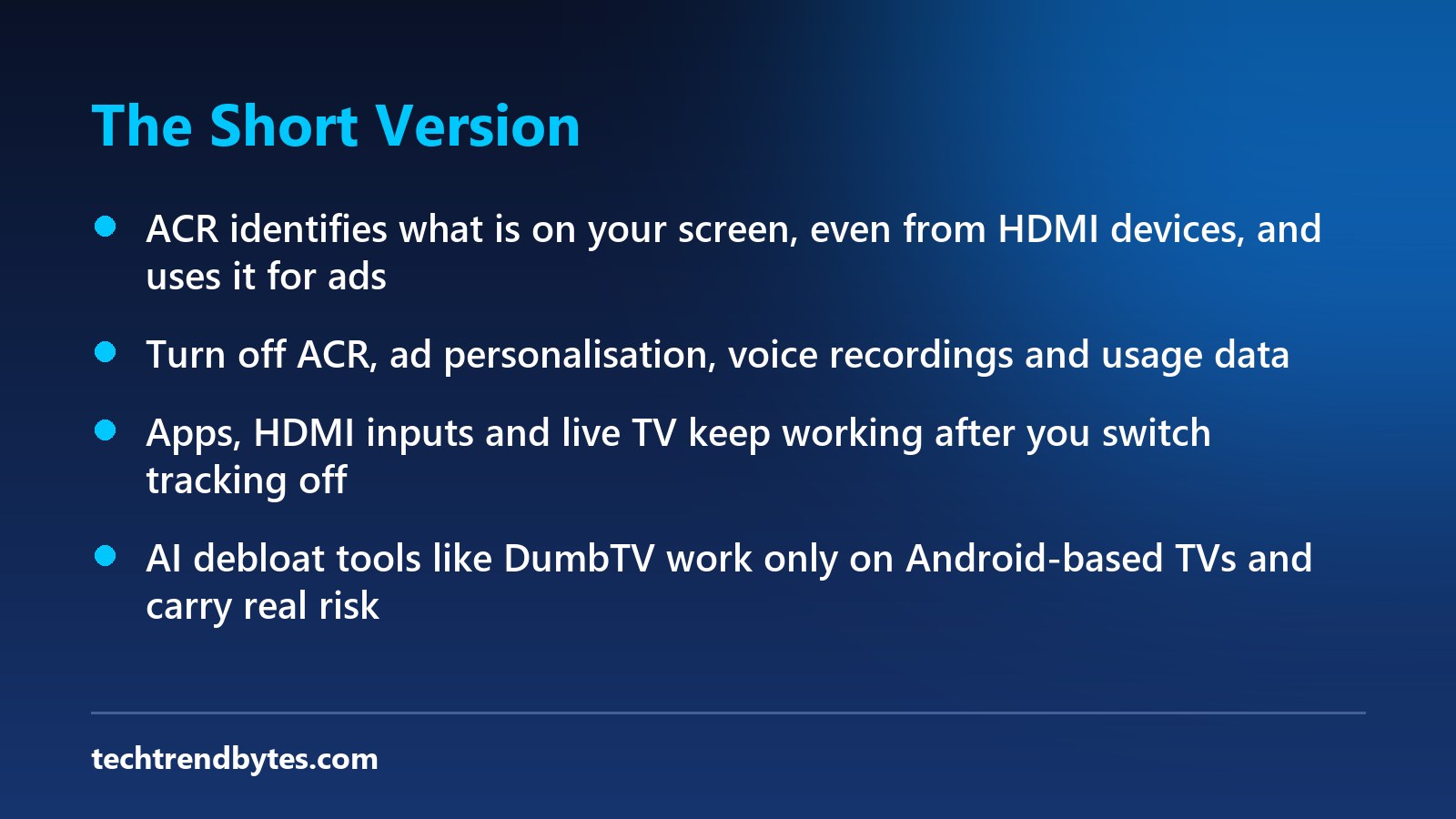
- The main culprit: A feature called ACR (automatic content recognition) identifies what is on your screen and reports it for ads.
- Four switches matter: ACR, ad personalisation, voice recordings, and usage or diagnostics data.
- Your TV keeps working: Apps, HDMI inputs and live channels still work after you turn these off.
- It is not total privacy: Netflix, YouTube and other apps still collect their own data.
- AI “debloat” tools exist: They can go further, but they carry real risk for most buyers.
What Is Smart TV Tracking, and Why Should You Care?
ACR samples tiny bits of the picture or sound on your screen. It turns them into a digital fingerprint. Then it matches that fingerprint against a database of shows, films, channels and ads.
That means your TV can learn what you watch and when. It can even recognise content playing through HDMI, such as a DTH box or a game console. A lawsuit filed in New York alleges that Samsung TVs capture screen data every 500 milliseconds. That is an allegation, not a proven finding, as Malwarebytes notes in its explainer.
Regulators are paying attention, too. Samsung settled with the Texas Attorney General and agreed to stop collecting ACR data from Texans without clear consent. Texas also sued Hisense, Sony, LG and TCL over similar practices.
However, none of that helps you in India unless you change the settings yourself. So let us get to the switches.
Why People Want to Stop Smart TV Tracking Right Now
On 19 October, XDA Developers reported on two GitHub projects, CleanYourTV and DumbTV. Both use AI help to clean up smart TVs. DumbTV says its goal is to keep only your apps and HDMI inputs, with no TV-level ads, watch tracking or surprise updates.
The story spread fast because it hit a nerve. Many buyers feel their TV now works for advertisers first. Home screens fill with promoted rows. Recommendations feel a little too accurate.
Still, you do not need AI or a laptop to fix most of this. The built-in settings handle the biggest leaks.
Switch 1: Turn Off ACR to Stop Smart TV Tracking
This is the most important step to stop smart TV tracking. Every brand gives ACR a different name, which is why people miss it.
Samsung (Tizen)
- Press Home on the remote and open Settings.
- Go to Support > Terms & Privacy > Privacy Choices. On newer models, try All Settings > General & Privacy instead.
- Turn off Viewing Information Services.
LG (webOS)
- Press the gear icon and open All Settings.
- Go to General > System > Additional Settings.
- Turn off Live Plus. This is LG’s name for ACR.
Sony (Google TV or Android TV)
- Open Settings > All Settings > Privacy.
- Turn off Samba Interactive TV, if your model has it.
Roku TVs
- Go to Settings > Privacy > Smart TV Experience.
- Turn off Use info from TV inputs, if you see it.
Menu names vary by model year and software version. If a path does not match, search the settings for words like “viewing”, “privacy” or “ACR”.
Switch 2: Stop Smart TV Tracking for Ads
ACR feeds the ad machine. Your advertising ID ties it all together. So turn off ad personalisation next.
Platform | Where to go | What to change |
|---|---|---|
Samsung | Privacy Choices | Turn off Interest-Based Advertising |
LG | Advertisement or User Agreements | Turn on Limit Ad Tracking, then reset the ad ID |
Google TV | Settings > Privacy > Ads | Opt out of ads personalisation and reset or delete the ad ID |
Fire TV | Settings > Preferences > Privacy Settings | Turn off Interest-based Ads |
Roku | Settings > Privacy > Advertising | Turn off Personalize ads and reset the ad ID |
Google TV matters most in India. Many popular sets from Xiaomi, TCL, Sony and other brands run Google TV or Android TV. On some Android TV models, the Ads menu sits under Settings > About > Legal Information instead.
You will still see ads after this. As Google’s own ads policy page explains, opting out stops personalisation, not ads. They just become less targeted.
Switch 3: Turn Off Voice Recordings
Voice search is handy. However, it can also mean voice clips sent to a server.
- Samsung: In Privacy Choices, turn off Voice Recognition Services.
- LG: In User Agreements, decline Voice Information, if listed.
- Google TV and Fire TV: Voice settings link to your Google or Amazon account. Review saved voice activity in that account’s privacy page.
If you rarely talk to your remote, switch this off. You can still type searches, and it helps stop smart TV tracking of your voice.
Switch 4: Cut Smart TV Usage Tracking
The last switch covers which apps you open and how you use the TV.
- Sony and other Android TV models: Go to Settings > Device Preferences > Usage & Diagnostics and turn it off.
- Fire TV: In Privacy Settings, turn off Device Usage Data and Collect App Usage Data.
- LG: In User Agreements, decline Viewing Information and Interest-Based Advertising as well.
One tip: recheck these after big software updates. One reviewer found that Fire TV’s ad setting had switched back on by itself.
Should You Use AI Tools to Stop Smart TV Tracking?
The AI method connects a computer to the TV over ADB (Android Debug Bridge). Then an AI coding assistant disables bloat apps and services. DumbTV says it needs no root access, writes nothing to the system partition, and every step can be undone with one script.
That sounds safe. But there are real catches:
- It only suits Android-based TVs. ADB works on Google TV, Android TV and Fire TV, not on most Samsung or LG sets.
- You give software deep access. An AI agent with control of a device can make mistakes. We covered this risk in our report on the CERT-In warning about AI agents.
- Things can break. Disabling the wrong system app can kill updates, voice search or even the launcher. Fixing it may need a factory reset.
- Warranty questions. Brands may not support problems caused by modified software.
So, for most readers, the four menu switches above are enough. Leave ADB tinkering to people who are comfortable fixing what they break.
What Turning Off Smart TV Tracking Will Not Do
Be realistic about the result. You can stop smart TV tracking at the TV level, but not everywhere. Malwarebytes points out that a TV still collects some data for its maker even with ACR off. That can include which apps you open.
Also, every streaming app runs its own tracking. Netflix, YouTube, JioHotstar and Prime Video know what you watch on their apps, whatever your TV settings say. Your Google or Amazon account also stores activity.
The same rule applies on your phone. Settings that feel harmless often share more than you expect, like the one in our guide to turning off Google phone number verification.
What You Should Do Now
Here is the honest verdict. Spend five minutes tonight with your remote.
- Turn off ACR first. It gives the biggest privacy win.
- Turn off ad personalisation and reset your ad ID.
- Switch off voice recordings if you do not use them.
- Turn off usage and diagnostics sharing.
- Set a reminder to recheck after the next big update.
If you are buying a new TV in the festive sales, run these steps on day one. Do it during setup, when the TV asks you to accept agreements. Read each screen and decline the optional ones.
Free features are rarely free, as we explained in why free AI tools are not really free. Smart TVs follow the same business model.
Conclusion
Smart TVs are not evil, but they are built to learn about you. The fix does not need AI, root access or extra money. Four switches will stop smart TV tracking for most homes, and your TV will work just the same.
Which brand of TV do you use, and did you find these settings already switched on? Tell us in the comments.
Read next

Fake WhatsApp App Warning: How to Spot One Right Now
A fake WhatsApp app passed 500,000 Play Store downloads. Use these 7 quick checks to spot a fake WhatsApp app and fix your phone if you installed one.
Google Phone Number Verification Warning: How to Stop It Now
Google phone number verification now links your number to every account on your Android phone. Here is how to turn it off and remove it in 2 minutes.

CERT-In Warning on AI Agents: Is Your Data Safe Now?
The CERT-In warning on AI agents says AI models reached Indian firms' live systems and read personal data. Here is what happened and what to do now.